Below you will find pages that utilize the taxonomy term “IOS Development”
Posts
Start MySQl from command line on Mac
Sometimes MySQL seems to have trouble starting up automatically. Even though I have the setting for MySql set to start up automatically via the checkbox “Automatically Start MySQL Server on Startup” in System Prefrences - MySQL. Even pressing the “Start MysSQL Server” button doesn’t work.
When this happens I find it useful to start up MySql via the command line. To do this I execute
/usr/local/mysql/support-files/mysql.server start
Either this is successful and it will say:
Posts
iOS and Android Mobile Device Frames for Screenshots
As you near the end of a release cycle for your mobile iOS or Android app you will need to take screenshots to include in the App Store listing.
Many decide to dress up their screenshots with device frames. Here is a list of sites that provide iPhone, iPad, and Android device frames that can be used in your App Store screenshots.
Facebook design site at https://facebook.design/devices includes frames for:
- Apple Thunderbolt
- Apple Watch
- Galaxy phones
- Google Pixel phones
- iMac
- iPad
- iPhone
- Nexus phones
- Surface tablets
- and much more
Apple’s developer website at https://developer.apple.com/app-store/marketing/guidelines/#section-products includes Apple product images for most of their devices with screens.
Posts
Create Apple Search Ads for Multiple Countries (Storefronts)
When Apple Search Ads launched in October 2016 it only displayed ads in the United States. However, it expanded to multiple English speaking countries on April 25, 2017 to include the United Kingdom, Australia, and New Zealand. Each country is represented by a different storefront and to get your ad to display in each storefront you need to create a separate campaign for each country.
By August 1, 2018, Apple Search Ads expanded to include France, Germany, Italy, Japan, Mexico, South Korea, Spain and Switzerland.
Posts
‘CurveEaseInOut’ is unavailable: use [] to construct an empty option set
Swift 3 removed CurveEaseInOut so you will get the error message “‘CurveEaseInOut’ is unavailable: use [] to construct an empty option set”
Replace
UIViewAnimationOptions.CurveEaseInOut
with
[.curveEaseIn, .curveEaseOut]
Posts
‘CGSizeMake’ is unavailable in Swift
Swift 3 removed CGSizeMake. You will get the error message “‘CGSizeMake’ is unavailable in Swift”. To resolve this replace:
CGSizeMake(100, 200)
with
CGSize(width: 100, height: 200)
Posts
How to fix target overrides the `ALWAYS_EMBED_SWIFT_STANDARD_LIBRARIES` build setting defined in `Pods/Target Support Files/…`
If you are using swift and CocoaPods you may get the following warning after running pod install or pod update:
[!] The target overrides the ALWAYS_EMBED_SWIFT_STANDARD_LIBRARIES build setting defined in Pods/Target Support Files/…. This can lead to problems with the CocoaPods installation
The warning message then gives the following two suggestions:
- Use the $(inherited) flag, or
- Remove the build settings from the target.
To implement the first suggestion of using the `$(inherited)` flag follow the steps below:
Posts
How to fix the Swift 4 @objc inference warning
After installing Xcode 9 and migrating to Swift 4 from Swift 3 I received this warning:
The use of Swift 3 @objc inference in Swift 4 mode is deprecated. Please address deprecated @objc inference warnings, test your code with “Use of deprecated Swift 3 @objc inference” logging enabled, and then disable inference by changing the “Swift 3 @objc Inference” build setting to “Default” for the “AppName” target.
I resolved this issue by going to the projects build target. Selecting “Build Settings”. Searching for “Inference” then changing the setting for “Swift 3 @objc Inference” from “On” to “Default”. If you have multiple targets in your project you may have to do this for each target.
Posts
Swift 4 substring
After converting my Swift 3 project to Swift 4 I received the warning:
‘substring(from:)’ is deprecated: Please use String slicing subscript with a ‘partial range from’ operator.
The old Swift 3 code was
let range = str.range(of:"Some ")
let index = range!.upperBound
let subStr = str.substring(from: index)
The new Swift 4 code for substring is:
let str = "Some String"
let range = str.range(of:"Some ")
let index = range!.upperBound
let subStr = String(str[index...])
Posts
Encryption Export Compliance for iOS apps
Disclaimer: I am not a lawyer. This is not legal advice, this is for information purposes only. Consult an attorney for legal guidance.
If your iOS app is simply using ATS or HTTPS to communicate with an external server then your app is using Encryption. As such you may need to submit a year-end self classification report to the US government. This is far-reaching as Apple is pushing to require ATS in all apps. The original deadline was Jan 1, 2017, however it has been extended indefinitely. These requirements would include simple apps that may be using an external SDK with ATS enabled for metrics or advertising such as Facebook SDKs.
Posts
iOS 11 App Store Search Results Include Developer Page
For iOS 11 Apple stated that the App Store will have Enhanced Search which will include “developers, in-app purchases, categories, editorial stories, tips and tricks, and collections”. In the past, if you searched for a developer name the App Store would show those developers’ apps in the search results.
In iOS 11 if you search for a developer by their name, the first search result will feature a page dedicated to that developer with a collage of icons generated from their apps. It appears that the most recently updated app icon is centered with the next recently updated app icons partially displayed around them. If the app developer only has a single app then that single app is displayed as normal without the developer page.
Posts
How to use Content Hosting for In-App Purchase Content
Apple allows apps developers to host their In-App Purchase Content on Apple’s servers. To set up Content Hosting you will need to use iTunes Connect, Xcode and the Application Loader. The IAP must be non-consumable to take advantage of content hosting.
iTunes Connect
Go to your app in iTunes Connect, then select Features, In-App Purchases. Create a new In-App Purchase or select an existing one. In the Content Hosting section, press “Turn On Content Hosting”.
Posts
How to create a Today Widget for your iOS App in Swift
This tutorial explains how to create a new Today Widget for iOS in Swift 3 using App Extensions in Xcode. It covers how to import pods, set up entitlements for inter-app communication via user defaults and custom url schemes. It also explains how to remove the existing storyboard and implement the today widget view programmatically instead of using Auto-Layout.
Create the Widget
First, Select your project and then create a new target via File, New, Target…
Posts
Deep Linking to the iOS App Store
Deep link to an app in the app store:
https://itunes.apple.com/app/id<APP_ID>
Deep link to an apps “Reviews” tab in the app store:
https://itunes.apple.com/WebObjects/MZStore.woa/wa/viewContentsUserReviews?id=<APP_ID>&pageNumber=0&sortOrdering=2&type=Purple+Software&mt=8
Deep link to an apps “Write a Review” page in the app store:
https://itunes.apple.com/app/id<APP_ID><span>?action=write-review</span>
Source: https://developer.apple.com/reference/storekit/skstorereviewcontroller/2851536-requestreview
Deep link to all apps by a developer in the app store:
itms-apps://itunes.apple.com/developer/<DEVELOPER_NAME>/id<DEVELOPER_ID>
Remember to replace <APP_ID> with the actual app’s Apple ID. Note that if you are deep linking from the iPhone or iPad you can replace the https:// with itms-apps:// to avoid a redirects.
Posts
iTunes Search API Country Codes
The iTunes Search API takes a country code. There are 28 languages that the iOS App Store can be localized into. Below are the ISO 3166-1 alpha-2 country codes for 25 of the main countries that can be used in the country parameter in the iTunes Search API.
CN DK NL AT CA US GB FI FR DE GR ID IT JP KR MY BR PT RU MX ES SE TH TR VN
Posts
How to align UIView to topLayoutGuide in SnapKit
Use topLayoutGuide.snp.bottom to align your UIView to the bottom of the navigation bar or the bottom of the status bar in Swift 3 while using the SnapKit pod.
Use bottomLayoutGuide.snp.top to align your UIView to the top of the tab bar.
Posts
iOS views/APIs and their corresponding Android views/APIs
If you are used to programming in iOS and need to write an Android app or vice versa here is a list of iOS views and their equivalent views on android. You can also use this list to infer the corresponding View Controller and Activity.
| iOS |
| UITableView |
| UICollectionView |
API’s below
| iOS |
| MPNowPlayingInfoCenter |
| MPRemoteCommandCenter |
| NSNotificationCenter |
| NSTimer |
Posts
How to programmatically play audio even when iOS device is muted
If you want to play the sound from a video or audio clip even when the iPhone or iPad device is muted you can use AVAudioSession to accomplish the task. This will make your app work similar to YouTube.
You will want to set the AVAudioSession category to AVAudioSessionCategoryPlayback. The session is a singleton so you only need to set it once, either shortly after app launch or prior to your audio or video playing.
Posts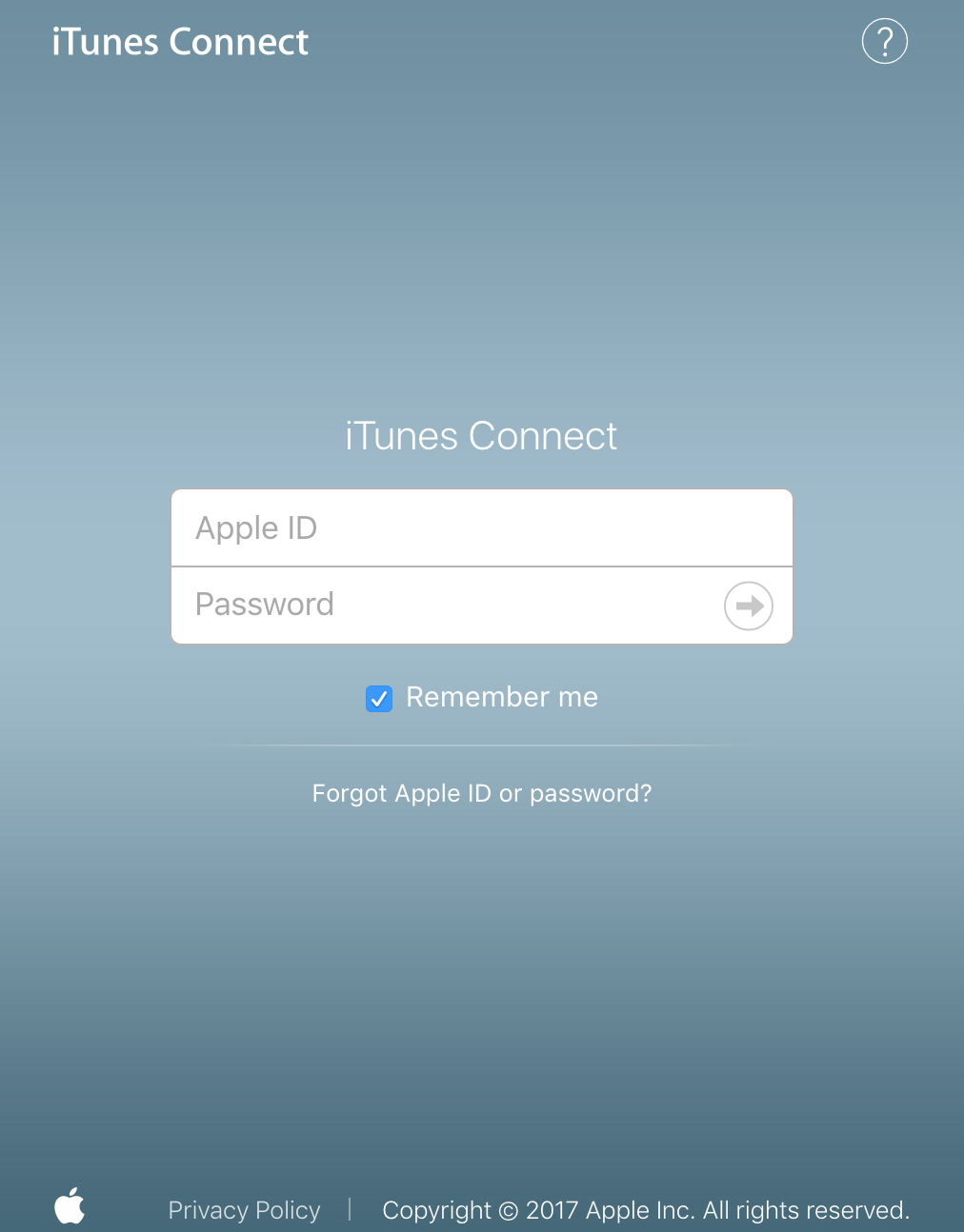
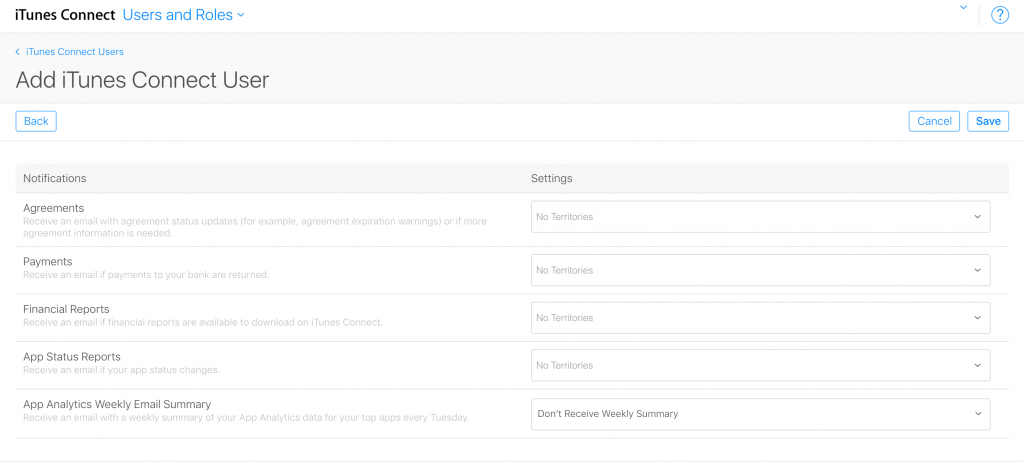
How to add a new user to your iTunes Connect account
First go to https://itunesconnect.apple.com/ and login.
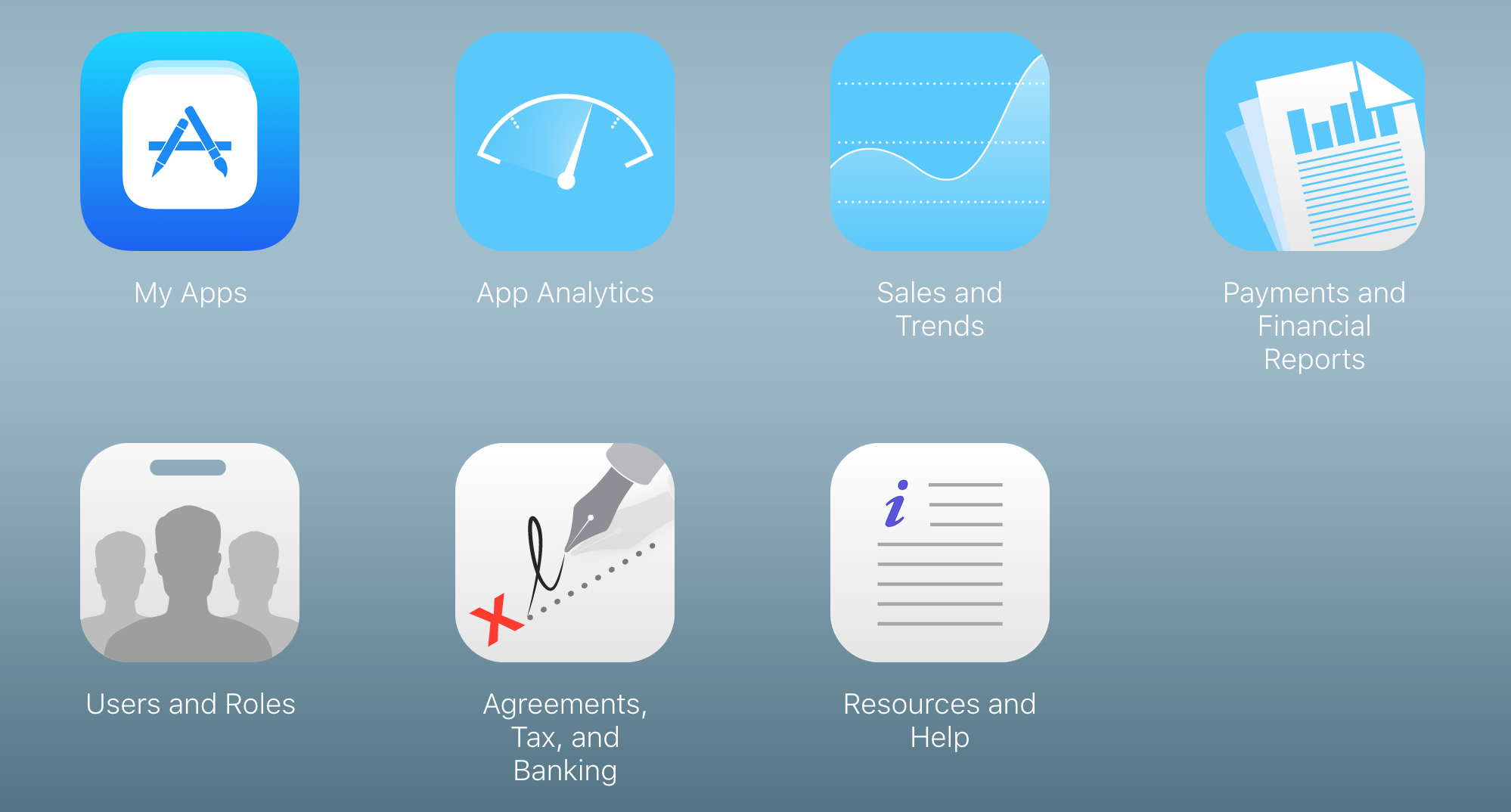
Second, select the “Users and Roles” icon.
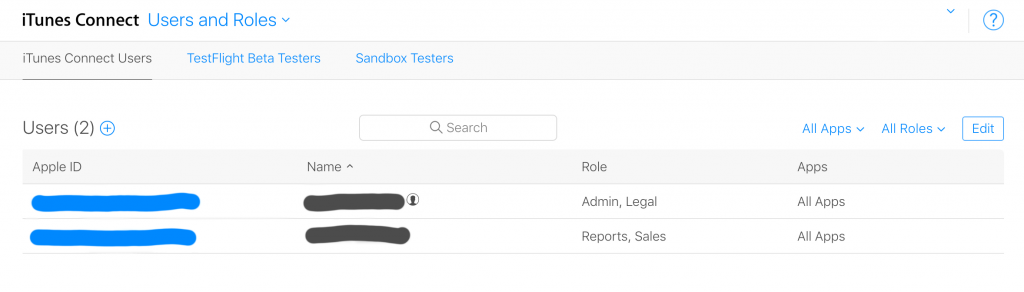
Third, press the + plus button to the right of User () to add a new user. Enter their name and email address.
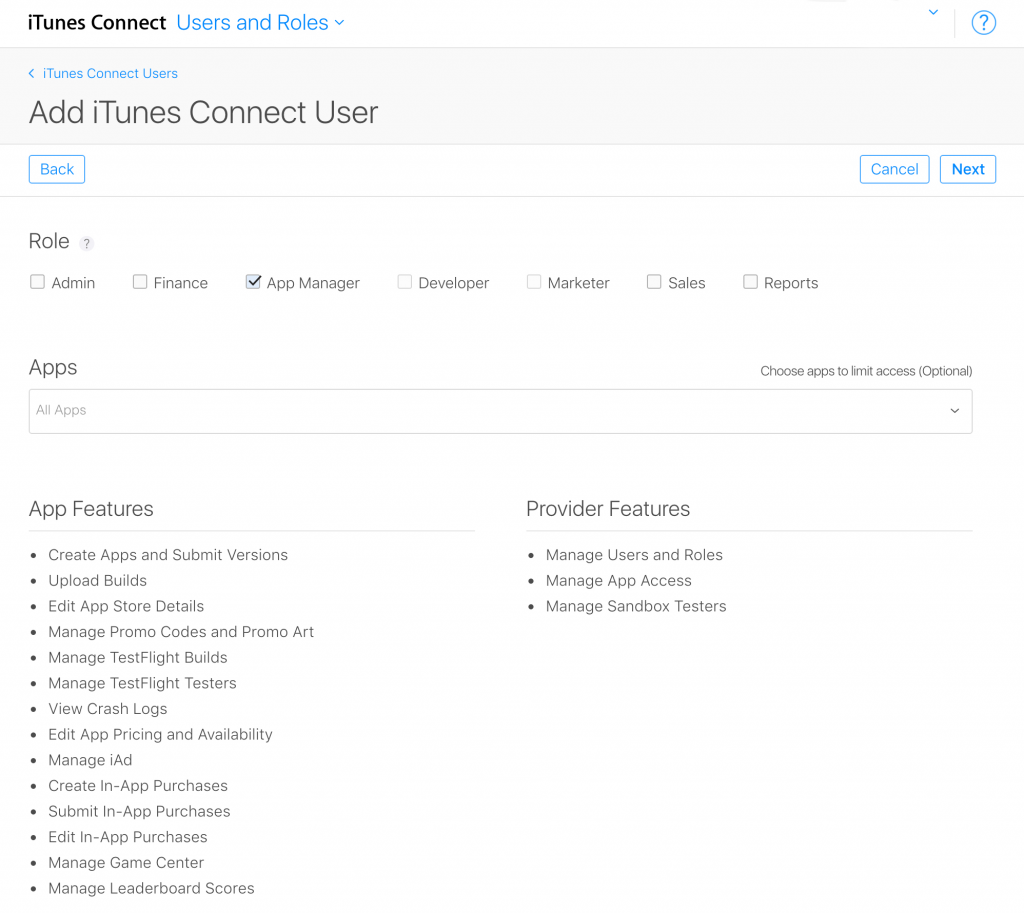
Select the role or roles to give the new user.
Lastly, select which email notifications they should receive.
If you are hooking up a cloud reporting service such as App Annie or appfigures to your iTunes account, you should probably create a new user with the Sales and Reports Roles only.
Posts
How to use the Attribution API for tracking installs via Apple Search Ads
Apple Search Ads is one of the many new introductions to the App Store for 2016. The new search ads allow developers and marketers to promote their iOS Apps at the top of App Store search results by bidding on search keywords.
You bid on how much you are willing to pay for a user to tap on your ad. For the most part you want to keep the average cost per acquisition (Avg CPA) below the lifetime value of a user. Lloyd Melnick blog defines LTV as consisting of three components: monetization, retention and virality. If you have a premium or paid up front app the monetization calculation is fairly straight forward, as it is simply the price of the app minus Apple’s 30% cut and any applicable taxes.
Posts
Dynamic Type in iOS using UIFontTextStyle
iOS 7 introduced Dynamic Type which allows the user to specify the font size in Settings. The easiest way to support dynamic type is to use one of Apple’s pre defined Font Text Style’s below.
Swift 3 and Swift 4
UIFontTextStyle.title1
UIFontTextStyle.title2
UIFontTextStyle.title3
UIFontTextStyle.headline
UIFontTextStyle.subheadline
UIFontTextStyle.body
UIFontTextStyle.callout
UIFontTextStyle.footnote
UIFontTextStyle.caption1
UIFontTextStyle.caption2
Swift 2.2
UIFontTextStyleTitle1
UIFontTextStyleTitle2
UIFontTextStyleTitle3
UIFontTextStyleHeadline
UIFontTextStyleSubheadline
UIFontTextStyleBody
UIFontTextStyleCallout
UIFontTextStyleFootnote
UIFontTextStyleCaption1
UIFontTextStyleCaption2
Here is a code example in Swift 3 or Swift 4 of using the Headline font style.
Posts
How to open an iOS app with custom URL
This tutorial shows you how to open another iOS app from within your iOS app or from the safari browser using a custom URL scheme.
Beginning with iOS 9, you must whitelist the apps you want to open. If you do not, you will get the error -canOpenURL: failed for URL: “customURLScheme://” – error: “This app is not allowed to query for scheme”. If you get this error skip to the beginning of step 3.
PostsUse the utility pane on the right, select the Localize… button. After selecting Base in the modal. You can now add additional Localizations to your app name by selecting their languages. To add a new language, select your Project from the Project Navigator, go to the Info tab, and select the + sign in the Localizations section.
How to localize an app’s name with InfoPlist.strings
These instructions are for localizing the information contained in the Info.plist. This includes the app’s name which is displayed on the user’s home screen under your app icon.
- In Xcode go to File, New, File..
- Select iOS (or the platform you are working with), Resource, Strings File, Next.
- Name the file InfoPlist.strings (case sensitive).
- If you only plan on having one App name for your project then I recommend placing the file in the same directory as your Localizable.strings file. However, if you have multiple targets and some of them use different app names then you will want to create a separate directory for the InfoPlist.strings file. You will then need to create a separate InfoPlist.strings file for each app name and associate it with the correct target.
- Select the newly created InfoPlist.strings file and add the following key, value pairs:
"CFBundleDisplayName" = "Your App Name";    //App name as displayed below app icon
"CFBundleName" = "Your App Name"    //Short app name, should be 16 characters or less
Posts
How to Localize an iOS or tvOS app in Swift or Objective-C
Localization is the translation of the app’s user interface into locale specific languages. In order to support localization we will use a strings file.
Creating a Localizable.strings file
I like to place the strings file in its own folder called “Resources”.
In Xcode, Select “File”, “New”, “File…”
In the template picker select the “Resource” for the appropriate OS. Select “Strings File”.
Name the file “Localizable.strings”. This is the iOS default naming convention, don’t name it something else unless you want to refer to it by name every time you need to reference it.
Posts
How to create promo codes for your iOS or tvOS paid app or in-app purchase
Promo codes allow you to give away your paid app for free. They are mainly used for sending your app to journalists or bloggers so that they can review your app at no cost to them. You can also send them to your friends or reward those who made some contribution to the apps development. Developers can generate up to 100 promo codes per version. Each code expires 28 days after generation or when you release a new version of the app, whichever comes first.
Posts
How to enable Universal Links in iOS 9+
Apple’s documentation states that “Adding support for universal links is easy. There are three steps you need to take”. However, there is much more to it than that. Here is what you really need to do.
apple-app-site-association file
Create the apple-app-site-association file and place it at the root of your webserver or the .well-known subdirectory.
{
    "applinks": {
        "apps": [],
        "details": [
            {
                "appID": "9JA89QQLNQ.com.apple.wwdc",
                "paths": [ "/wwdc/news/", "/videos/wwdc/2015/*"]
            },
            {
                "appID": "ABCD1234.com.apple.wwdc",
                "paths": [ "*" ]
            }
        ]
    }
}
The appId is your App Prefix or Team Id followed by the Bundle ID. You can get this from https://developer.apple.com/account/#/membership/ and look for the Team ID value.
Posts
Localize iOS project with Strings file
File..New File
From the appropriate platform, choose Resource, Strings File
Name it “Localizable.strings”.
Add your key value pairs as such:
"HELLO_WORLD" = "Hello World!";
In code add your localized string with:
Swift
NSLocalizedString("HELLO_WORLD", comment: "")
Objective-C
NSLocalizedString(@"HELLO_WORLD", nil);
To add additional languages go to your project..Info..Localizations.
Press the + button to add new languages.
Did you find this post helpful? Support independent development and improve your sleep by downloading White Noise and Deep Sleep Sounds free from the App Store.
Posts
Remove storyboard from iOS or tvOS and design programmatically
If you prefer to work with code programmatically instead of via Storyboards then this tutorial will help you start a brand new iOS or tvOS project by removing the default main storyboard.
From Xcode, select File…New…Project. (iOS/tvOS)…Application…Single View Application…Next.
Give your project a title. Select the appropriate checkmarks for Core Data and testing. Press Next.
Delete Main.storyboard and select Move to Trash.
Select the project from the Project Navigator. Select the Target. Under General…Deployment Info…Main Interface, delete “Main”.
Posts
25 Useful Tools for iOS Software Developers
As a software developer or marketer of iOS apps we rely on our tools to help build our products and save us time. Below are 25 useful tools for building iOS apps.
| Name |
| ack |
| Affinity Designer |
| AppCode |
| AppWage |
| Audacity |
| CocoaPods |
| Cyberduck |
| Delete Contacts+ |
| DreamShot |
| Eclipse |
| Fastlane |
| iExplorer |
| iMovie |
| Phabricator |
| Postman |
| QuickTime |
| ScreenFlow 7 |
| SimPholders |
| Simulator Status Magic |
| Sketch |
| SourceTree |
| SQLite Professional |
| Textmate |
| Tunnelblick |
| QuickBooks Self-Employed |
| Xcode |
Posts
iTunes Connect API (fastlane) and corresponding Xcode language codes
If you are using the iTunes Connect API via fastlane or spaceship and would like to access your app meta data by language, below is a chart of the language codes that spaceship converts the iTunes Connect languages into. In addition, if you are localizing your app in Xcode for multiple locales of the same language. You should probably use the base language and omit the locale for at least one locale so that any other locales you omit have a fall back language to use. I’ve also included the language codes that Google Translate’s API uses if you decide to use machine translation.
Posts
Use plutil to find that missing double quote or semicolon in your Localizable.strings file
Is Xcode giving you the error in Localizable.strings “Read failed: The data couldn’t be read because it isn’t in the correct format.” but it isn’t telling you what line the error is on?
Use the command line tool plutil to find that missing semicolon or double quote.
cd to the directory of the offending Localizable.strings file and run
plutil -lint Localizable.strings
It should respond with something like:
CFPropertyListCreateFromXMLData(): Old-style plist parser: missing semicolon in dictionary on line 86. Parsing will be abandoned. Break on _CFPropertyListMissingSemicolon to debug.
Posts
How to specify tvOS target conditional in Swift and Objective-C
In Swift use:
#if os(tvOS)
    //tvOS code here
#elseif os(iOS)
    //iOS code here
#endif
In Objective-C use:
#if TARGET_OS_TV
    //tvOS code here
#else TARGET_OS_IOS
    //iOS code here
#endif
Did you find this post helpful? Support independent development and improve your sleep by downloading White Noise and Deep Sleep Sounds free from the App Store.
Posts
How to use core data from existing iOS app with tvOS
In Apple’s new tvOS, data saved in core data is not persisted but is only cached. The tvOS may delete the data stored in core data when space is low.
From https://developer.apple.com/library/tvos/documentation/General/Conceptual/AppleTV_PG/
Local Storage for Your App Is Limited
The maximum size of an Apple TV app is limited to 200 MB. Moreover, your app can only access 500 KB of persistent storage that is local to the device (using the NSUserDefaults class). Outside of this limited local storage, all other data must be purgeable by the operating system when space is low. You have a few options for managing these resources:
Posts
How to specify DEBUG and RELEASE flags in Xcode with Swift or Objective-C
This tutorial shows you how to selectively run your debug or production code using flags. Sometimes you may find it necessary to only run some code in Debug mode and other code in Release mode.
Swift
- Open your Project Build Settings and search for “Swift Compiler – Custom Flags” … “Other Swift Flags”.
- Add
-DDEBUGto the Debug section - Add
-DRELEASEto the Release section
- In Swift you can use the following code:
#if RELEASE
    // release only code
#else
    // debug only code
#endif
or
#if DEBUG
    // debug only code
#else
    // release only code
#endif
Objective-C
- In Objective-C, the DEBUG flag is already defined as a preprocessor macro. However, you will need to add the RELEASE flag by going to your Project Build Settings and searching for
Preprocessor Macros. - Add
RELEASE=1to the Release section - In Objective-C you can ue the following code:
#ifdef RELEASE
    // release only code
#else
    // debug only code
#endif
or
#ifdef DEBUG
    // debug only code
#else
    // release only code
#endif
Posts
How to add CocoaPods acknowledgements plist to iOS settings
This tutorial will explain how to add the automatically generated CocoaPods acknowledgements plist file to your app’s iOS settings page.
CocoaPods automatically creates an acknowledgements markdown and plist file with the license information of all the pods in you project. You can use the plist file to create an acknowledgements section in the iOS settings for your app.
Note: There is a bug in Xcode 7.2 UI for creating a Child Pane. Below is a workaround.